Guide
OBS, phone, Stream Deck: HypeLayer live setups, explained with diagrams
HypeLayer does not replace your streaming tool: it adds to it. Depending on your gear, you can use it in several ways. Here is each setup in one diagram, what you need, and how to choose.
Published · 6 min read
How to read the diagrams
- Orange arrow: your live, the picture and sound going to your platform.
- Purple arrow: the HypeLayer overlay (your widgets) added to the picture, or the commands of your remote.
- Grey arrow: a recorded copy, for clips.
OBS + overlay: the basic setup
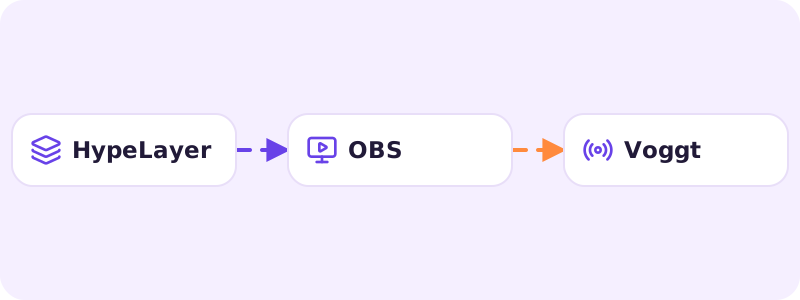
You stream with OBS as usual. HypeLayer adds itself as a browser source: your widgets show over your camera and react live. Your live never goes through our servers: OBS sends it to your platform itself.
- You need: a computer, OBS, and an account that can stream from OBS (on Voggt, access conditions depend on Voggt).
- Available today.
OBS + phone camera: a second angle without a cable
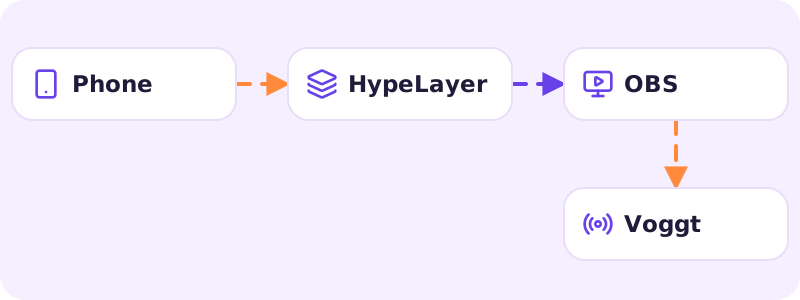
Your phone becomes a camera of your live. It sends its picture to HypeLayer, which places it in your scene like a widget: full screen behind your widgets, or as an inset in a corner. Since the overlay is already in OBS, the camera shows up there with no cable or extra software.
- Open HypeLayer on your phone with your account, or pair it with the QR code shown on your computer.
- In the Camera tab, start the capture, then add the camera to the live scene of your show.
- Keep the phone plugged in and the app in front: it keeps the screen awake while capturing, but the camera stops if you switch apps.
- Available today.
The remote: drive it without taking your eyes off the live
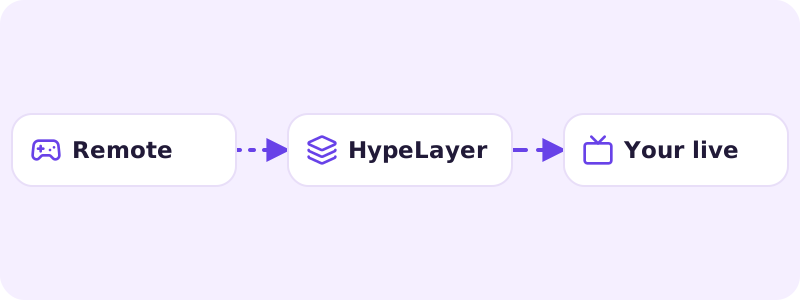
Whatever way you stream, you can trigger your widgets remotely: switch scenes, reveal a card, start a countdown. It combines with the other setups.
- With a Stream Deck paired to your account.
- With your phone: the Scenes, Actions and Show tabs of the HypeLayer app.
- Available today.
On the way: streaming without OBS
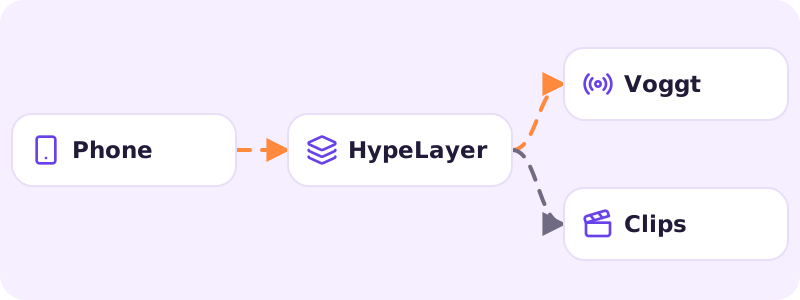
For streamers without a computer, or who do not want to set up OBS: your phone (or your computer’s webcam, from the browser) sends its picture, and HypeLayer puts camera and widgets together on its servers before streaming to your platform. You will also be able to keep the recording to cut clips.
This setup is being validated on the platforms: it is not open to everyone yet.
On the way: OBS + recording
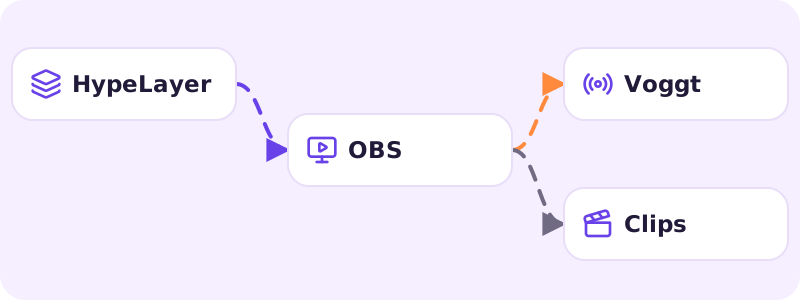
You keep OBS, and it also sends a copy of your live to HypeLayer, which records it for your clips and replays. The copy goes out in parallel: if HypeLayer is down, your live goes on as normal, only the recording has a gap.
The copy takes a bit more upload (the stream is sent twice), but no more work for your computer, which encodes the picture only once.
Which one to choose?
- You already stream with OBS: OBS + overlay.
- You want a second angle, on your cards for instance, without buying a webcam: OBS + phone camera.
- Your live leaves from another tool and you only want to drive your widgets: the remote.
- You have no computer: the phone studio, as soon as it opens.
HypeLayer is an independent service, not affiliated with Voggt.